Controls and UI in Run a Police Station
Find codes, hiring, fleet, dispatch, and upgrades fast so your first hour is spent policing—not hunting buttons.
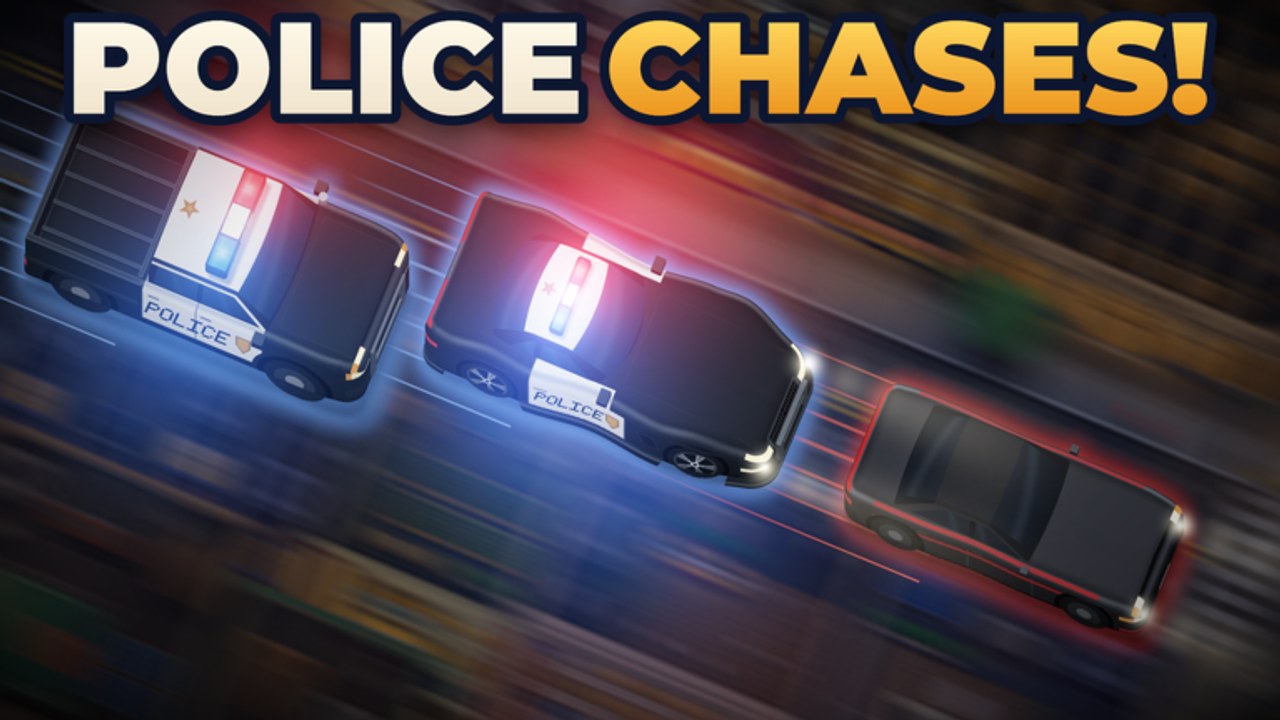
Players searching for Run a Police Station controls usually want one thing: where each system lives so they can hire officers, answer dispatch, and expand headquarters without wandering. Cute Puppies Studio’s Roblox Simulation/Tycoon does not publish a public keyboard bible, and UI labels can shift after patches (the place refreshed as recently as 12 November 2026). This guide maps the functional panels every chief needs—codes, hiring and training, vehicles, dispatch, station tiers, divisions and missions—plus practical PC and mobile habits that keep a 12-player server productive.
Use this page beside Getting Started and the station checklist. For free rewards before you touch shops, open Codes and How to Redeem Codes. When a button moves after an update, re-check November 2026 and the live Roblox client rather than trusting a stale screenshot.
What “controls” means in this tycoon
Run a Police Station is not a pure first-person shooter with a fixed WASD combat sheet. Your “controls” are the management surfaces that drive the loop:
- Promo / codes entry — redeem strings from the official description.
- Officer hire and train — grow the roster and skills.
- Vehicle collect and upgrade — field cars, SUVs, tactical vans, and armored units.
- Dispatch board — answer robberies, accidents, emergencies, chases, heists, SWAT, detective, Most Wanted, and K-9 tracks.
- Headquarters tiers — expand through six station stages.
- Divisions and missions — unlock specialized paths once the desk can support them.
Movement still uses Roblox defaults (walk, camera, jump), but progression speed comes from mastering those panels—not from inventing hotkeys the studio never listed.
First 60 seconds after you join
- Spawn into the station and stop moving for a breath.
- Scan the HUD and nearby interactables for shop, codes, hire, vehicle, and dispatch icons.
- Open the codes or promo tab and redeem the active list from the Codes Hub before spending.
- Open hiring next so empty desks do not greet your first call.
- Confirm you can see the dispatch board before you buy a vanity vehicle.
If a friend is already on the server, ask which UI they used for codes and hiring—label names sometimes differ between patch builds, but the order above stays stable.
Codes and shop UI
Promo codes are listed on the official Roblox place description (as of mid-November 2026: 500LIKES, 100KVISITS, UPDATE3, 5KGROUP, 1000ACTIVE, MOSTWANTED, K9UNIT). In-game, open the shop or promo menu, switch to the Codes tab, paste one string at a time, and redeem. Exact capitalization matters; strip spaces. Full troubleshooting lives on How to Redeem Codes.
UI tip: Redeem timed boosts (cash, XP, training, all-four-boosts) at the start of a long session so timers cover real dispatch work. Deploy free Epic Sloane Whitcombe from 5KGROUP as soon as she appears in the roster.
Hiring, training, and officer panels
The hire panel is how you staff patrol generalists, specialists, and later K-9 or tactical packages. After hiring, open training so skill bars move before the next hard call. Role assignment can stay loose on day one—one soft-call officer and one ready for tougher scenes is enough until you learn the board mix. Deep systems: Hire and Train Officers, Officer Skills, and the Officers tier list.
Common UI mistake: Closing the hire panel to shop vehicles, then forgetting to open training until a SWAT call fails.
Vehicles and garage UI
Fleet panels cover collect, spawn or assign, and upgrade paths for police cars, SUVs, tactical vans, and armored vehicles. Day one needs a dependable patrol option that can leave the lot. Save tactical and armored classes for when dispatch shows heavier jobs and officers can actually drive them. Read Vehicles and Fleet and the Vehicles tier list before your second major purchase.
UI tip: After buying, confirm the unit is assigned and ready, not sitting as an unusable purchase confirmation.
Dispatch board habits
The dispatch board is the heartbeat. Learn how new calls appear, how priority looks when robberies and accidents compete, and how long units stay busy. Send the closest ready package. When the board matures you will also see Hot Pursuit chases, bank heists, SWAT jobs, detective cases, Most Wanted hunts, and K-9 tracks—mid goals covered on Dispatch Calls, Chases and Heists, SWAT Calls, and K-9 Unit.
Co-op UI tip: On a full 12-player server, call out which ping you claim so four chiefs do not stack on one accident while a robbery expires.
Station tiers, divisions, and missions
Headquarters expands through six tiers. The upgrade panel should be opened when call income is stable—not when you are mid-chase. Divisions and missions unlock as capacity and progression allow; push them when the UI says you are ready rather than force-clicking locked text. See Station Tiers, Missions and Divisions, and Captain Rank for the long ladder that ends in badges like Headquarters and Captain on Deck (Badges).
PC versus mobile habits
Roblox runs on PC, mobile, and console wrappers. Exact keybinds follow your Roblox settings, but management tips transfer:
- PC: Use a pinned browser tab for this wiki’s Codes list while the client stays focused on redeem and dispatch.
- Mobile: Zoom the HUD carefully before tapping redeem or hire; fat-finger mistakes waste boost timers.
- All platforms: Finish one panel action (redeem → confirm → verify reward) before opening the next shop.
There is no verified public “custom keybind pack” required to play well. Ignore executor overlays that promise auto-dispatch hotkeys; see Scripts for why that path risks the account holding your badges.
Accessibility and clarity checklist
- Turn down competing music in Roblox settings if call audio or UI cues are hard to hear.
- Stand still when reading small mobile text on the codes box.
- After every place update, reopen codes, hire, vehicle, and dispatch once before large spends.
- Bookmark Getting Started and this controls page so returning players re-orient in under a minute.
Related reading
- Getting Started — day-one loop order
- How to Redeem Codes — codes UI detail
- Dispatch Calls — board priorities
- Tips and Mistakes — habits that waste panel time
- Guides Hub — full walkthrough map
- Updates Hub — when UI shifts after patches
Master the panels, then police the city. Controls in Run a Police Station are the difference between a chief who answers every ping and a visitor who never finds the codes tab.
Frequently Asked Questions
Quick answers for chiefs building a stronger precinct.
Where do I enter codes in Run a Police Station?
Open the in-game shop or promo menu, go to the Codes tab, paste one string exactly, and redeem. Full steps are on How to Redeem Codes.
Does the game publish a full keyboard control list?
No stable public keybind bible is posted by the studio. Use Roblox movement defaults and learn the management panels listed in this guide; re-check the live UI after patches.
What should I open first after joining?
Codes, then hiring and training, then confirm dispatch is visible before big vehicle spends. Getting Started walks the same order.
Do PC and mobile use different progression menus?
The same systems exist on both; layout density changes. On mobile, tap carefully in the codes and hire panels so you do not mis-spend boosts.
What if a button moved after an update?
Trust the live client. Re-open codes, hire, vehicles, and dispatch after place updates, and skim the Updates hub for November notes.